
- Training
- Service
- Promotion
- Schedule
- Testing Center
- News
- Contact
10/22/2021


To secure and optimize your worker’s productivity and collaboration, you need to allow on-site and remote workers to easily and securely access your organization's on-premises and cloud-based information, tools, and resources. This solution steps through the deployment of key layers of infrastructure that empower your workers to do their best work, wherever they are.
Hybrid workers can work on-site or remotely in a combination of locations. Allowing workers to work away from a traditional office is important for many organizations to:
Microsoft 365 has the capabilities to empower your hybrid workers to work either on-site or remotely.
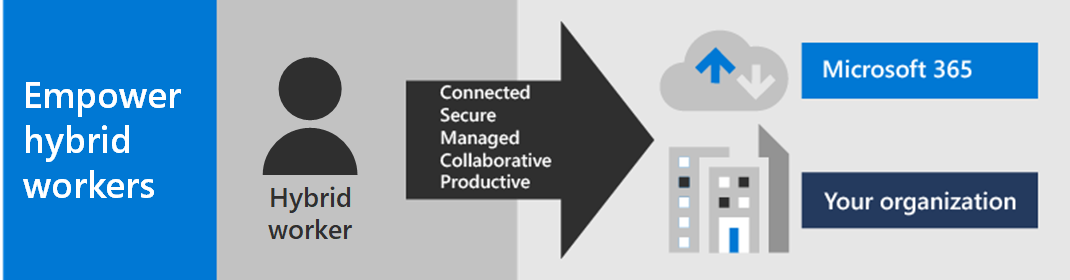
For IT professionals managing onsite and cloud-based infrastructure to enable hybrid worker productivity, this solution provides these key capabilities:
| Connected |
From anywhere in the world and at any time, your workers are able to access:
| Secure |
Sign-ins are secured with multi-factor authentication (MFA) and built-in security features of Microsoft 365 and Windows 10 protect against malware, malicious attacks, and data loss.
| Managed |
Your hybrid worker's devices can be managed from the cloud with security settings, allowed apps, and to require compliance with system health.
| Collaborative and productive |
Your hybrid workers can be as productive as on-premises in a highly collaborative way with:
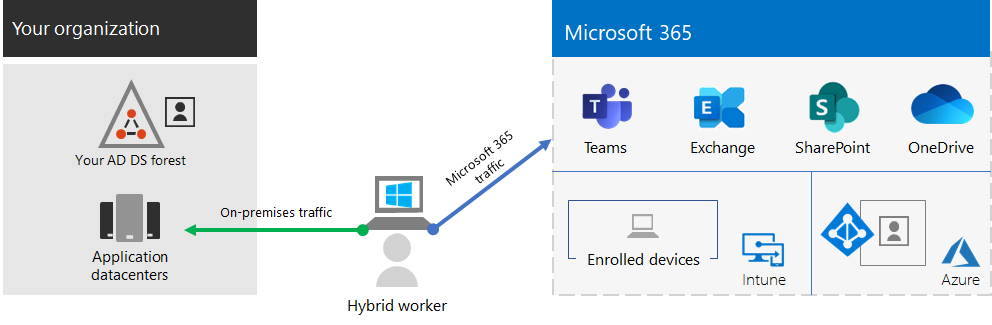
For a seamless sign-in experience, your on-premises Active Directory Domain Services (AD DS) user accounts should be synchronized with Azure Active Directory (Azure AD). To protect your Windows 10 devices, they should be enrolled in Intune. Here is a high-level view of the infrastructure.
For security and compliance criteria, see Deploy security and compliance for remote workers.
|
Capability or feature |
Description |
Licensing |
|
MFA enforced with security defaults |
Protect against compromised identities and devices by requiring a second form of authentication for sign-ins. Security defaults requires MFA for all user accounts. |
Microsoft 365 E3 or E5 |
|
MFA enforced with Conditional Access |
Require MFA based on the properties of the sign-in with Conditional Access policies. |
Microsoft 365 E3 or E5 |
|
MFA enforced with risk-based Conditional Access |
Require MFA based on the risk of the user sign-in with Azure AD Identity Protection. |
Microsoft 365 E5 or E3 with Azure AD Premium P2 licenses |
|
Self-Service Password Reset (SSPR) |
Allow your users to reset or unlock their passwords or accounts. |
Microsoft 365 E3 or E5 |
|
Azure AD Application Proxy |
Provide secure remote access for web-based applications hosted on intranet servers. |
Requires separate paid Azure subscription |
|
Azure Point-to-Site VPN |
Create a secure connection from a remote worker’s device to your intranet through an Azure virtual network. |
Requires separate paid Azure subscription |
|
Windows Virtual Desktop |
Support remote workers who can only use their personal and unmanaged devices with virtual desktops running in Azure. |
Requires separate paid Azure subscription |
|
Remote Desktop |
Allow employees to connect into Windows-based computers on your intranet. |
Microsoft 365 E3 or E5 |
|
Remote Desktop Services Gateway |
Encrypt communications and prevent the RDS hosts from being directly exposed to the Internet. |
Requires separate Windows Server licenses |
|
Microsoft Intune |
Manage devices and applications. |
Microsoft 365 E3 or E5 |
|
Configuration Manager |
Manage software installations, updates, and settings on your devices |
Requires separate Configuration Manager licenses |
|
Desktop Analytics |
Determine the update readiness of your Windows clients. |
Requires separate Configuration Manager licenses |
|
Windows Autopilot |
Set up and pre-configure new Windows 10 devices for productive use. |
Microsoft 365 E3 or E5 |
|
Microsoft Teams, Exchange Online, SharePoint Online and OneDrive, Microsoft 365 Apps, Microsoft Power Platform, and Yammer |
Create, communicate, and collaborate. |
Microsoft 365 E3 or E5 |
For security and compliance criteria, see Deploy security and compliance for remote workers.
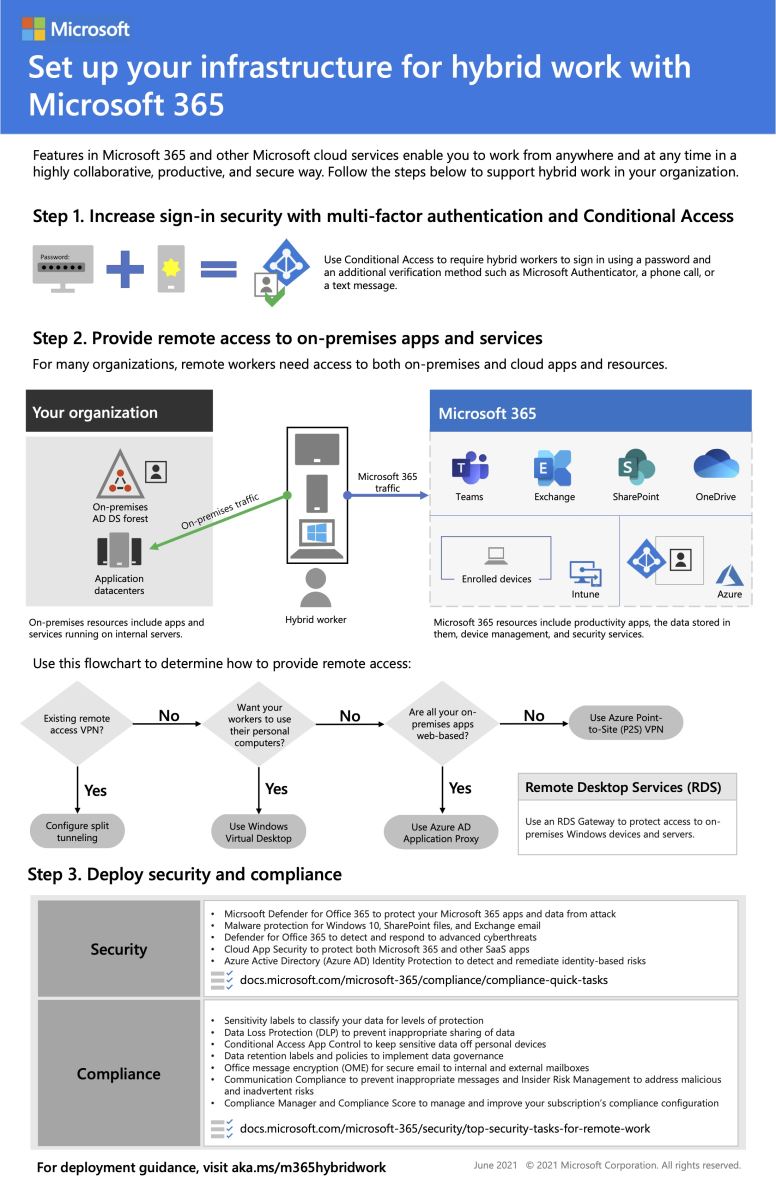
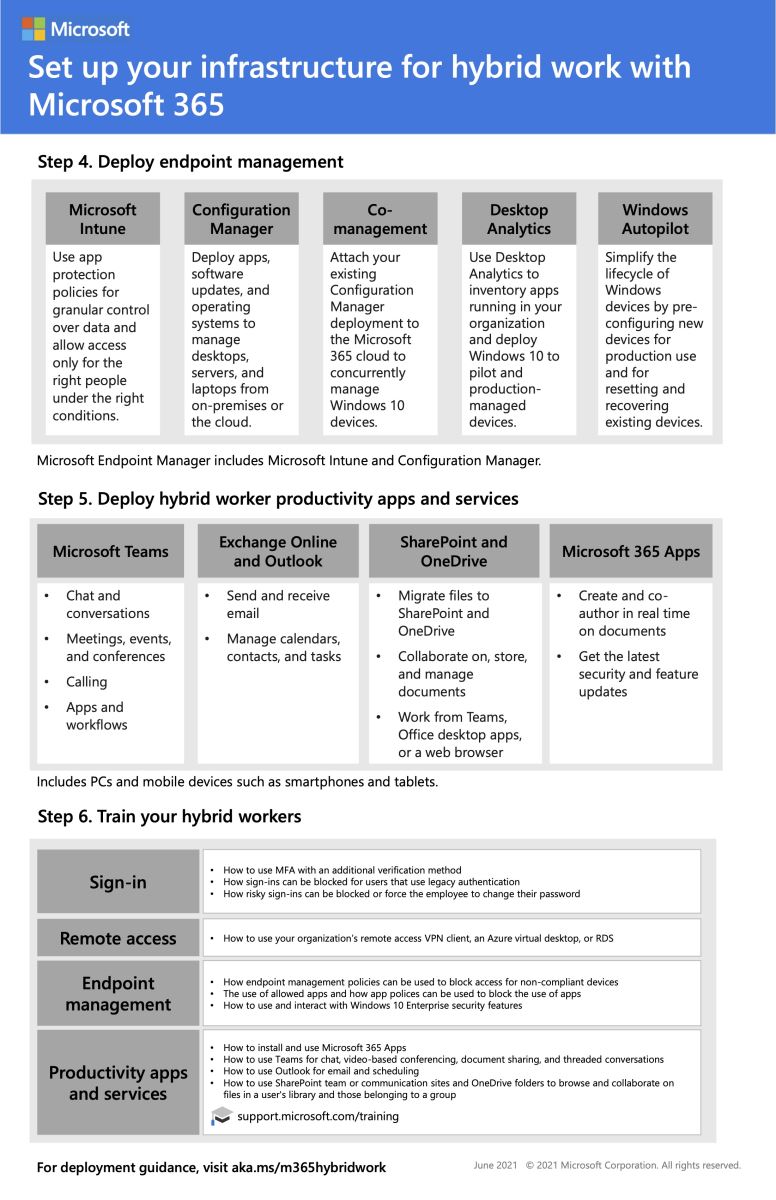
You can enable all of your workers to stay productive from anywhere with these devices:
Use these steps to secure and optimize access to your organization's servers and cloud services and maximize your hybrid worker's productivity.
Source: microsoft.com

12/11/2025


